Tour the demo catalog
This tour follows the reproducible booking demo from the catalog home page to specific catalog facts. Browse the demo without changing it, open a System in more detail, and compare derived catalog relations with declared architecture relationships before viewing a System Context diagram. From there, the tour continues outward to an API specification and one of its operations, a cross-system Flow, a Resource's database schema, and the catalog-wide System Map.
Before you begin
Complete Run Atlas locally, including the booking demo seed, and sign in at http://localhost:5173. The screenshots below use the seeded local administrator, but these read-only browsing steps require only an authenticated Atlas session.
If the seeded account cannot sign in, or the named demo Systems do not appear, resolve that symptom before continuing the tour.
The tour follows a visible path from the catalog home page to the relationships around Booking & Reservations, then outward to an API, a Flow, a Resource's schema, and the catalog-wide System Map.
1. Start on the catalog home page
The home page summarizes the catalog with linked totals for Systems, Components, APIs, Resources, and Teams. Use these cards to open the corresponding searchable lists and see how much of the catalog is already populated.
Below the totals, About this catalog explains what Atlas tracks and the two
ways to add entities: register them manually in the catalog UI or ingest them
from a repository's catalog-info.yaml. Superusers can customize this content
from Settings → Home.
Select Systems in the navigation or use the Systems total on the home page to continue with the searchable catalog records.
2. Scan the Systems list
The default Systems list is unfiltered, excludes removed entities, and is sorted by name. Each row combines the human-readable title with its description, owner, and tags.
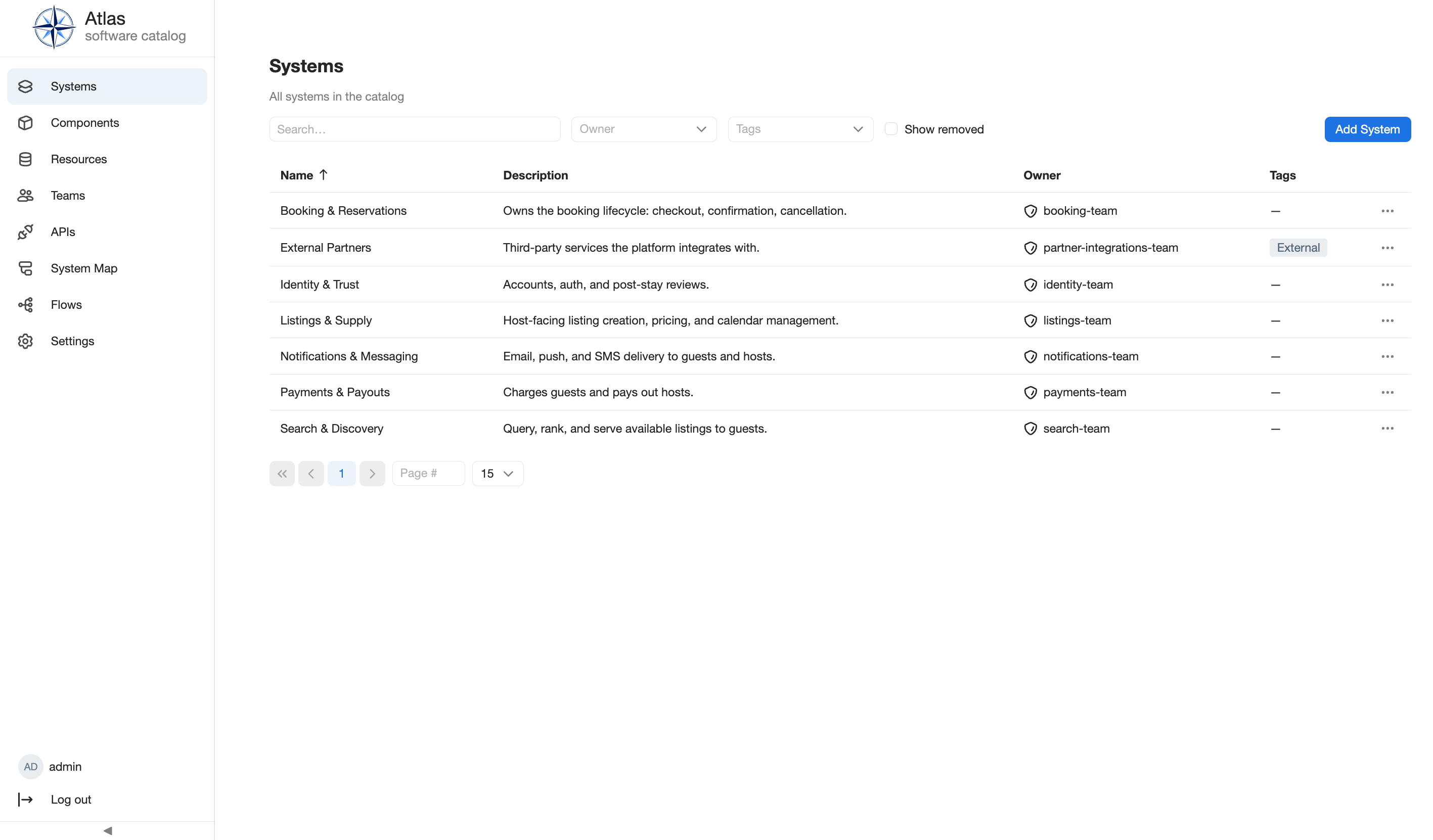
Find Search & Discovery near the end of the list. The filter bar is the place to narrow larger catalogs; this baseline capture deliberately has no search text, owner filter, tag filter, or Show removed selection.
3. Preview without leaving the list
Select the Search & Discovery row once. Atlas keeps the list in place and opens a preview panel with the owner and description. The open-details control in the panel header moves to the canonical entity page; the close control returns to the full-width list.
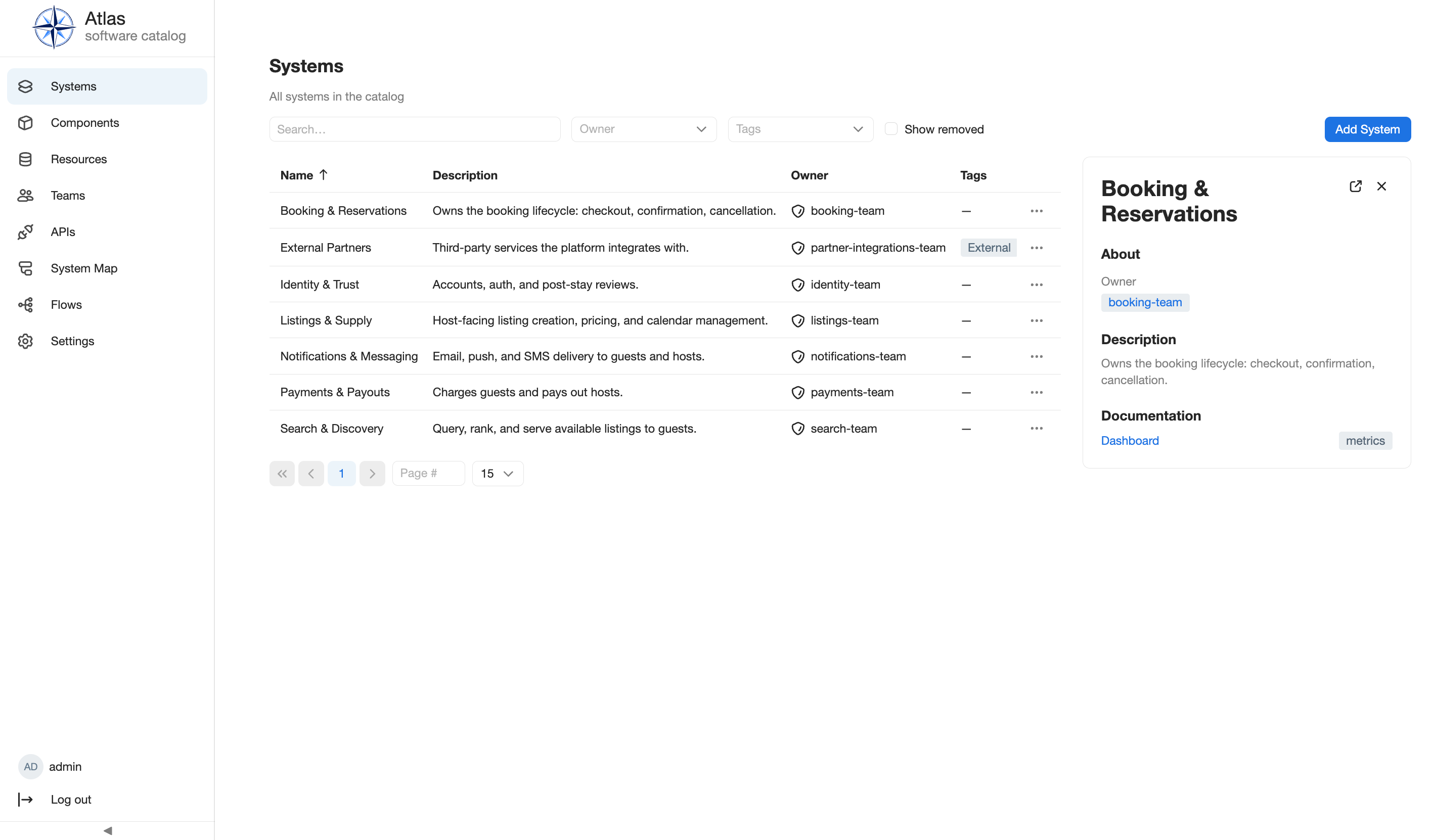
Use the preview to identify the System quickly. The full detail page includes tabs, lifecycle actions, history, and feature-specific views.
4. Open the System detail
Return to the list, select Booking & Reservations, and open its detail page. The Overview tab includes the seeded description and owner alongside maintained documentation for the System's business outcome, success signal, planning question, and material risk.
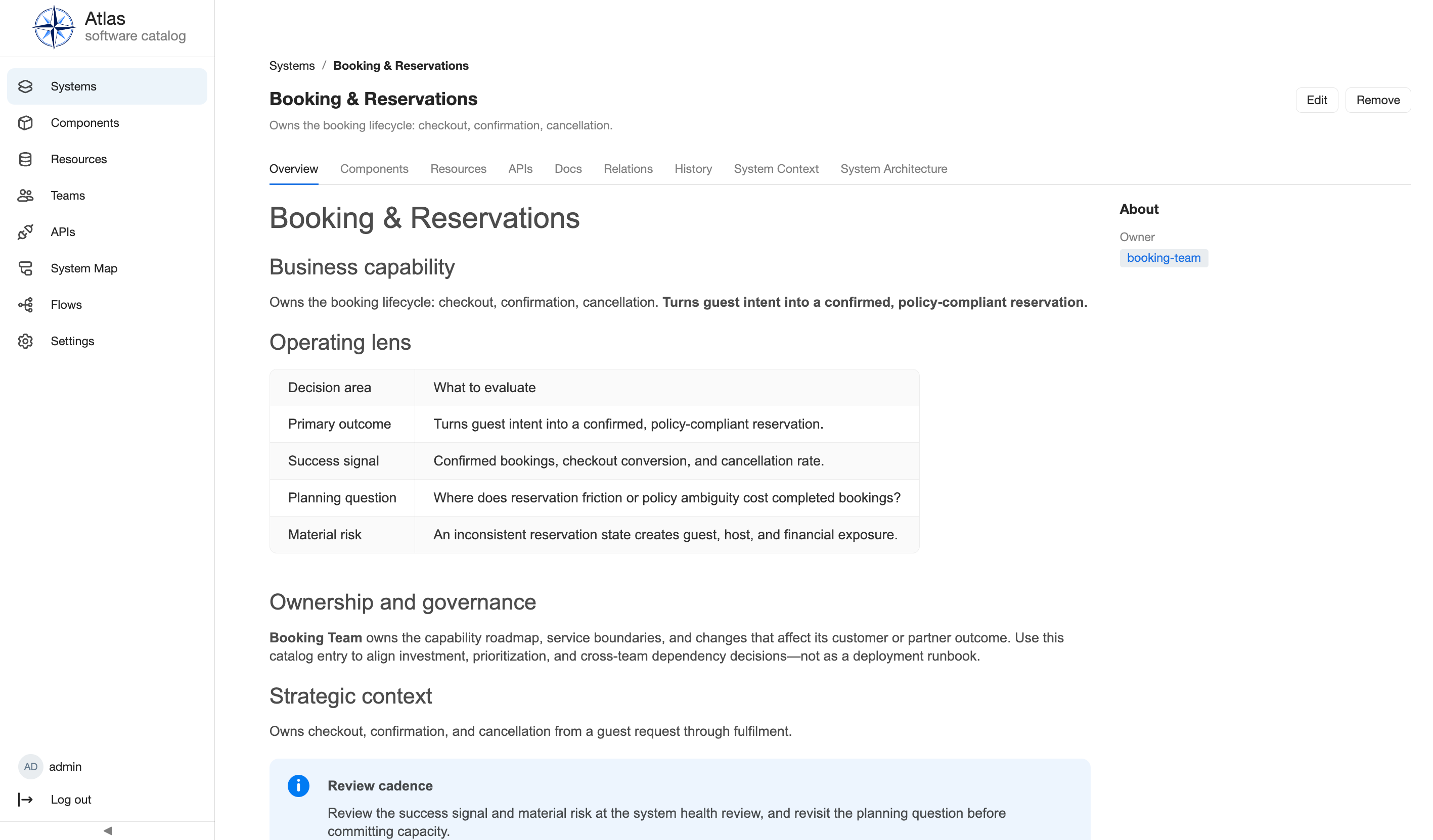
Use the tabs to move between the same entity's Components, Resources, APIs, documentation, relations, history, and C4 views. The owner in the About rail links to the responsible Team.
5. Browse the API catalog
Select APIs in the navigation. Like the Systems list, this page is unfiltered by default and lists every API across every System with its type, owner, System, and tags.
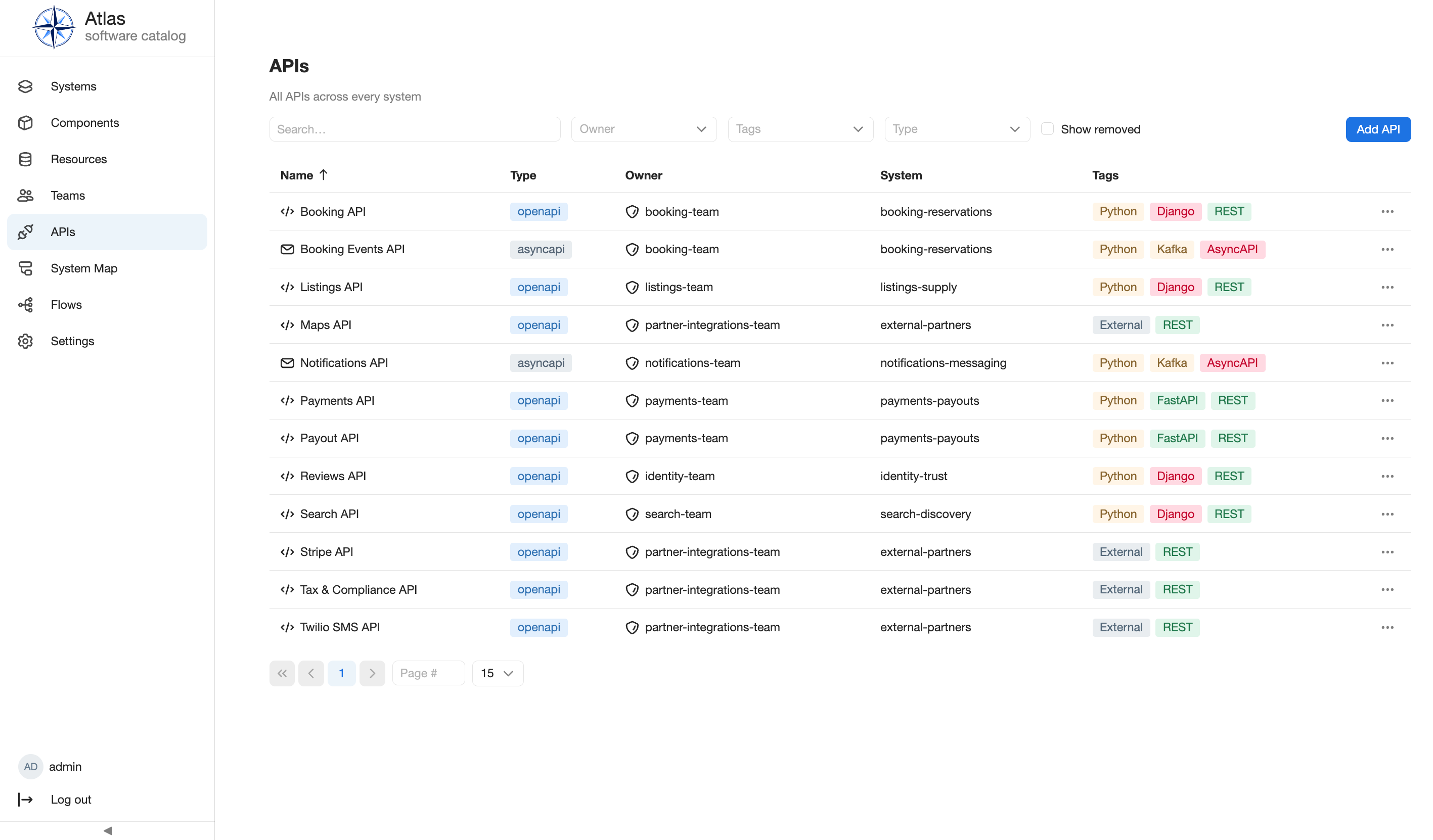
Find Booking API, owned by booking-team under Booking & Reservations,
and select it to open its detail page.
6. Read an API's specification
The API detail page has its own tabs: Overview, Specification, Operations, Relations, and History. Select Specification to render the imported OpenAPI contract in place, with a spec download and a per-operation reference panel.
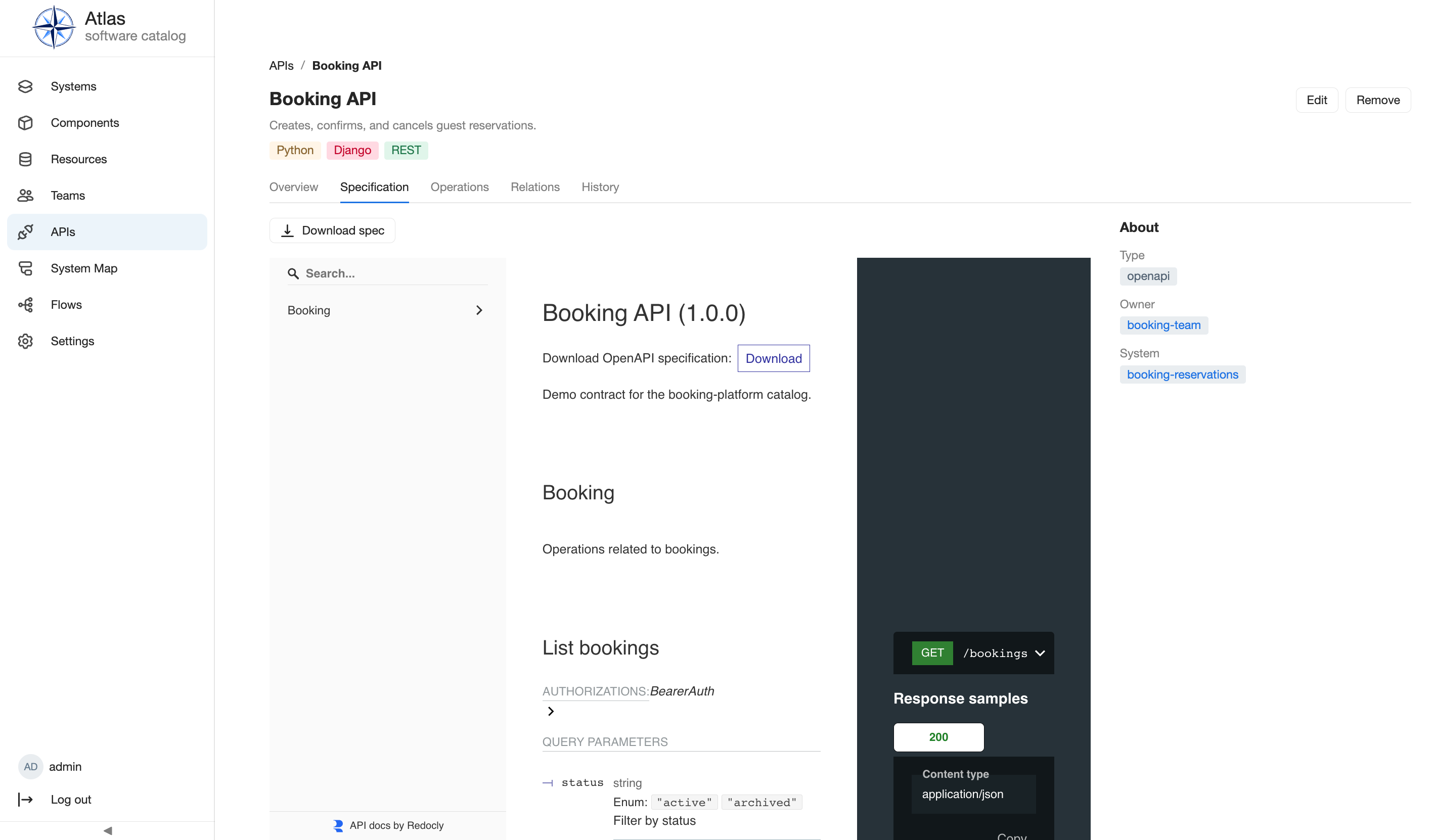
Ingestion imports Endpoints from an OpenAPI specification and Operations from an AsyncAPI specification; this demo API is OpenAPI-sourced. See APIs for how specifications are supplied and refreshed.
7. Inspect an operation and its linked services
Select Operations, then open GET /bookings/{id}. Its Overview tab lists operation details — operation ID, protocol, security, owner, and System — beside a graph of the services that use this exact endpoint.
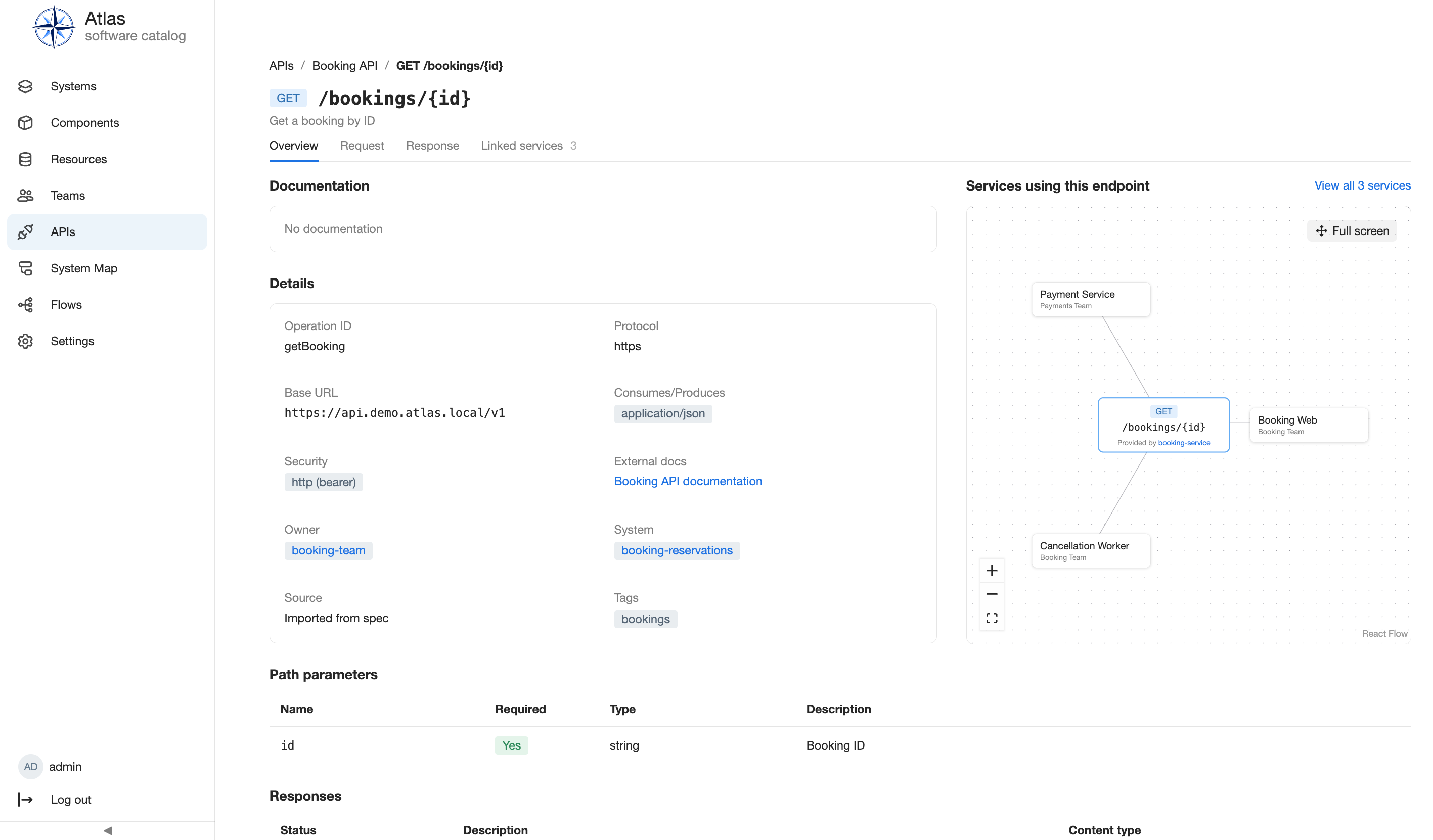
This graph is more specific than a System-level relation: it names the individual services linked to this Operation rather than the API as a whole.
8. Separate catalog and architecture relationships
Select Relations. Catalog Relations come from structured catalog facts:
the System is owned by booking-team and contains the displayed Resources,
APIs, and Components. Architecture Relationships record explicit runtime
interactions.
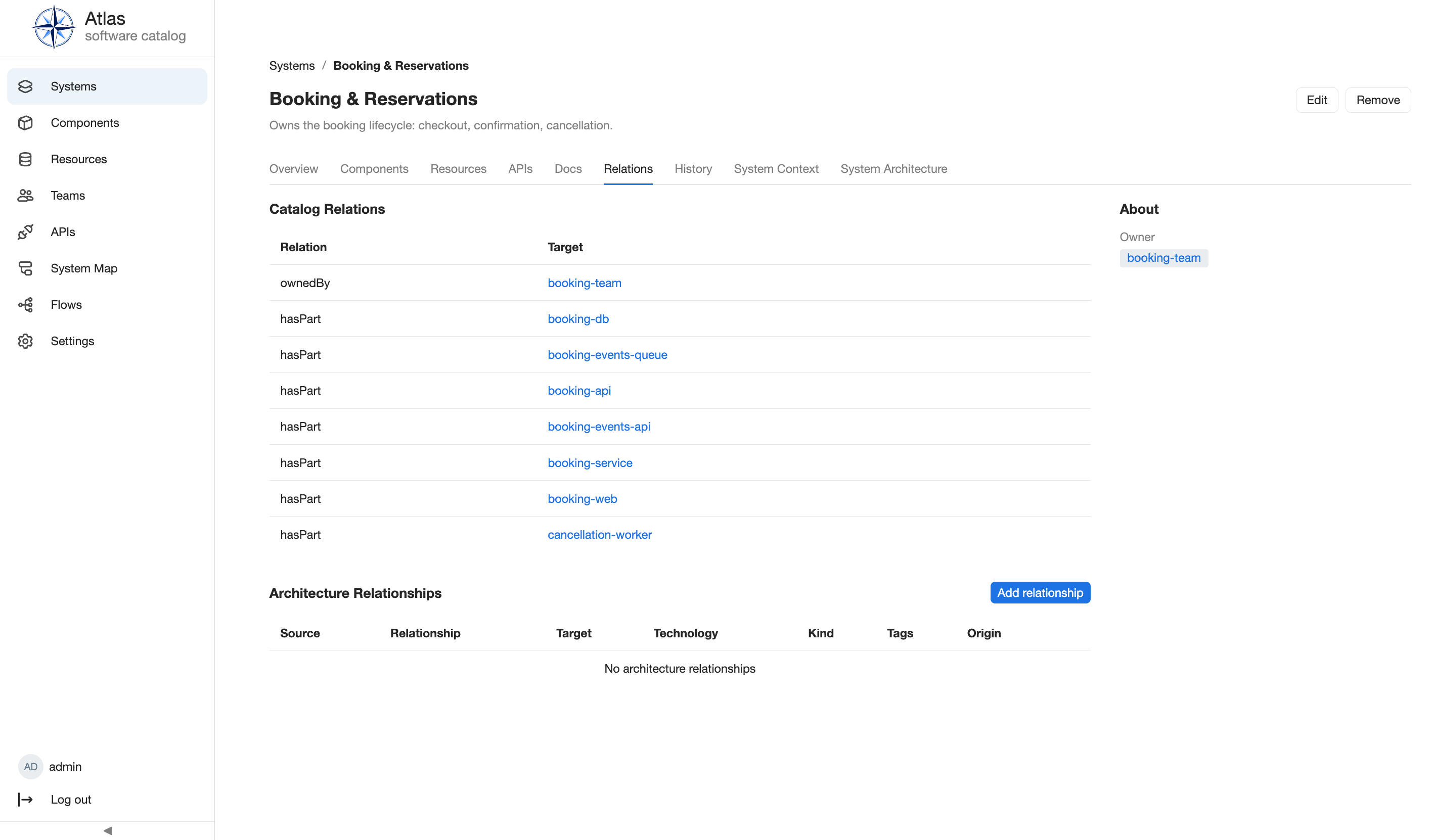
In this seeded System view, the architecture table is empty because the demo declares runtime interactions from lower-level entities, not from the System record. Separate sections keep derived ownership and containment facts from looking like manually declared runtime calls. See entity references for how linked targets retain a stable catalog identity.
9. Read the System Context diagram
Select System Context, wait for rendering to finish, close diagram settings if they are open, and use Fit to viewport. The capture uses one additional Zoom out step so the complete graph remains visible below the page chrome at the baseline viewport.
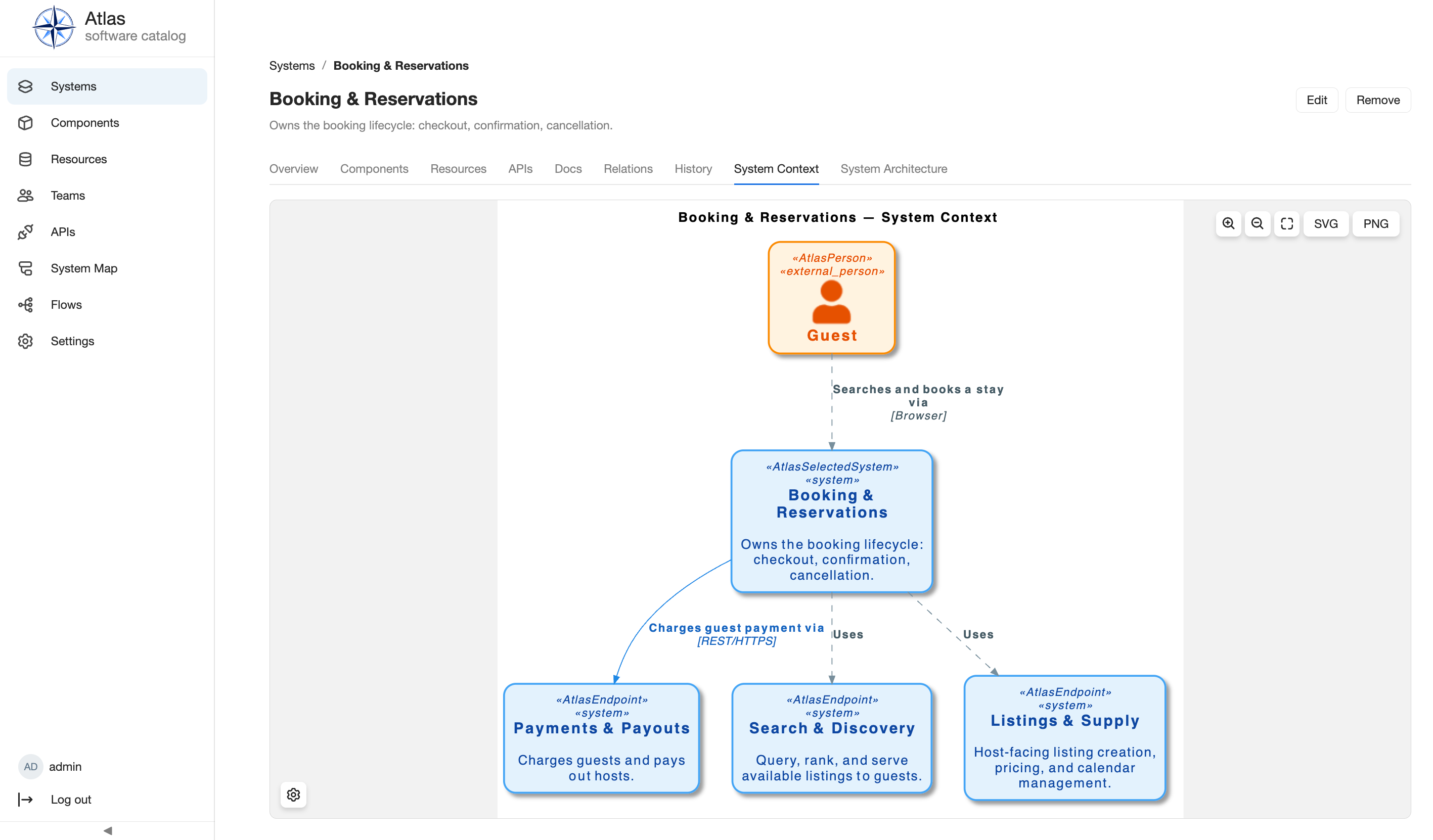
Read each arrow from source to target. Labels describe the interaction and, when present, its technology. The diagram stays at System level. The adjacent System Architecture tab shows the selected System's lower-level elements.
10. Follow a Flow triggered by the booking lifecycle
Select Flows in the navigation and open notification-delivery-flow, then its Flow tab. A Flow documents an ordered process across catalog entities and API operations; this one starts where the tour's own booking domain hands off to notifications.
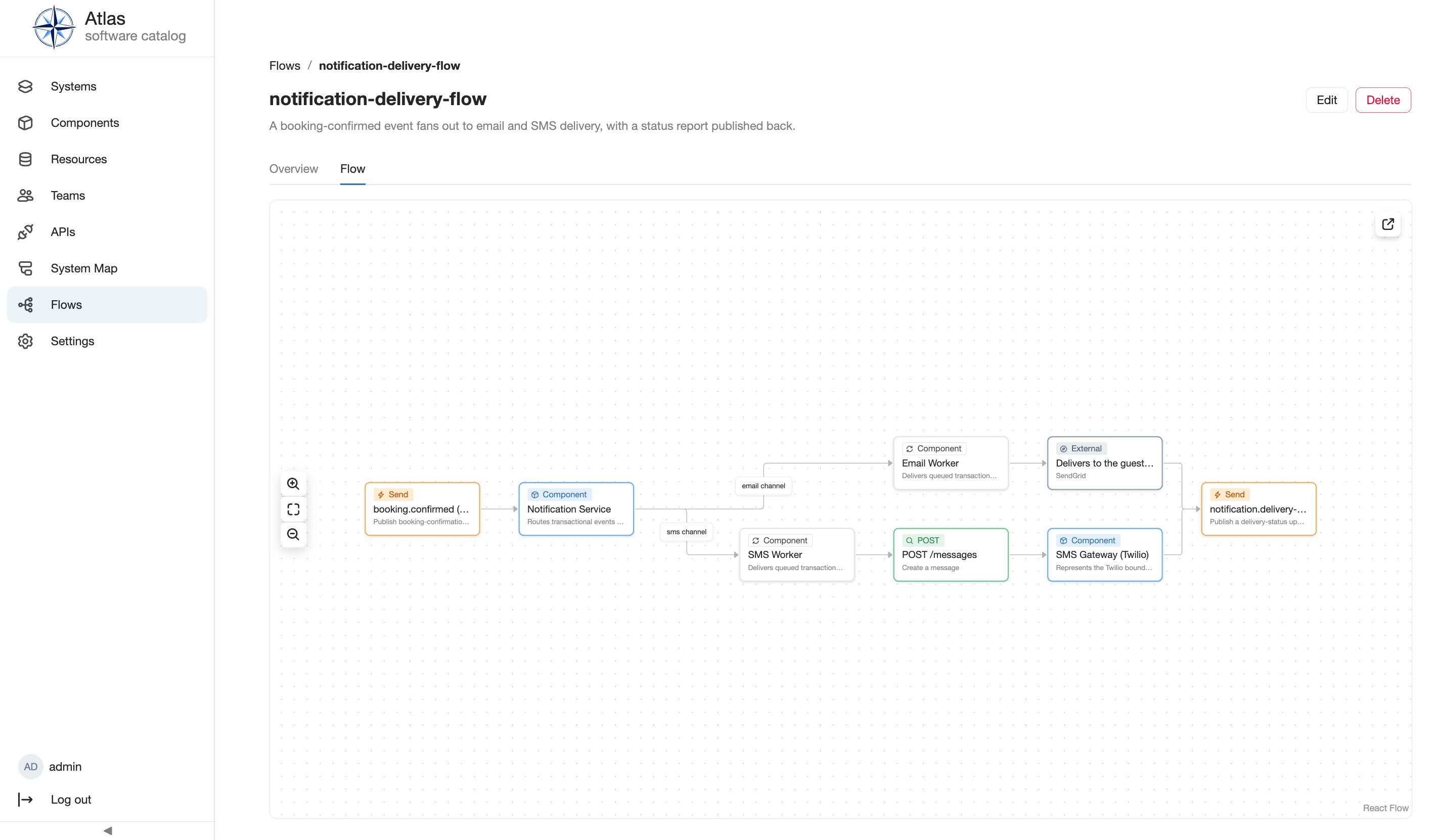
Read the graph left to right: a booking.confirmed event reaches the
Notification Service Component, which routes it over labelled channels to the
Email Worker and SMS Worker, each delivering to an external provider, before a
delivery-status event is published back. See Flows for
the available step types and how to create one.
11. Inspect a Resource's database schema
Select Resources, open Booking DB — the Resource backing Booking & Reservations — and select its ER Diagram tab.
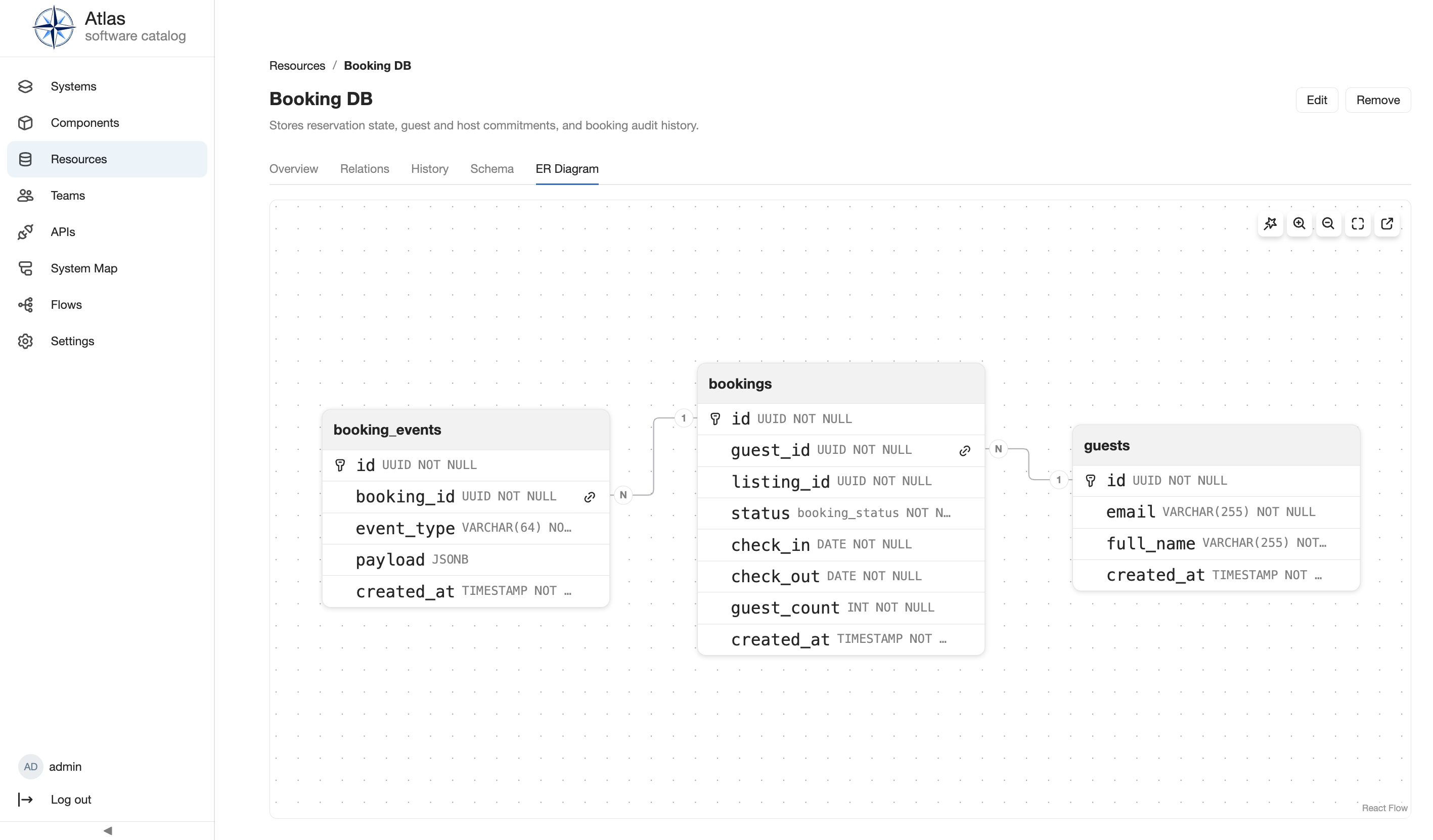
The diagram is parsed from the Resource's declared SQL schema: bookings
links to guests and to booking_events through foreign keys, with
cardinalities marked on each connector. See Database
Schema for supported dialects and how a
repository-managed schema differs from a manually entered one.
12. View the catalog-wide System Map
Select System Map in the navigation. Unlike the entity-scoped System Context from step 9, this diagram renders every System in the catalog at once.
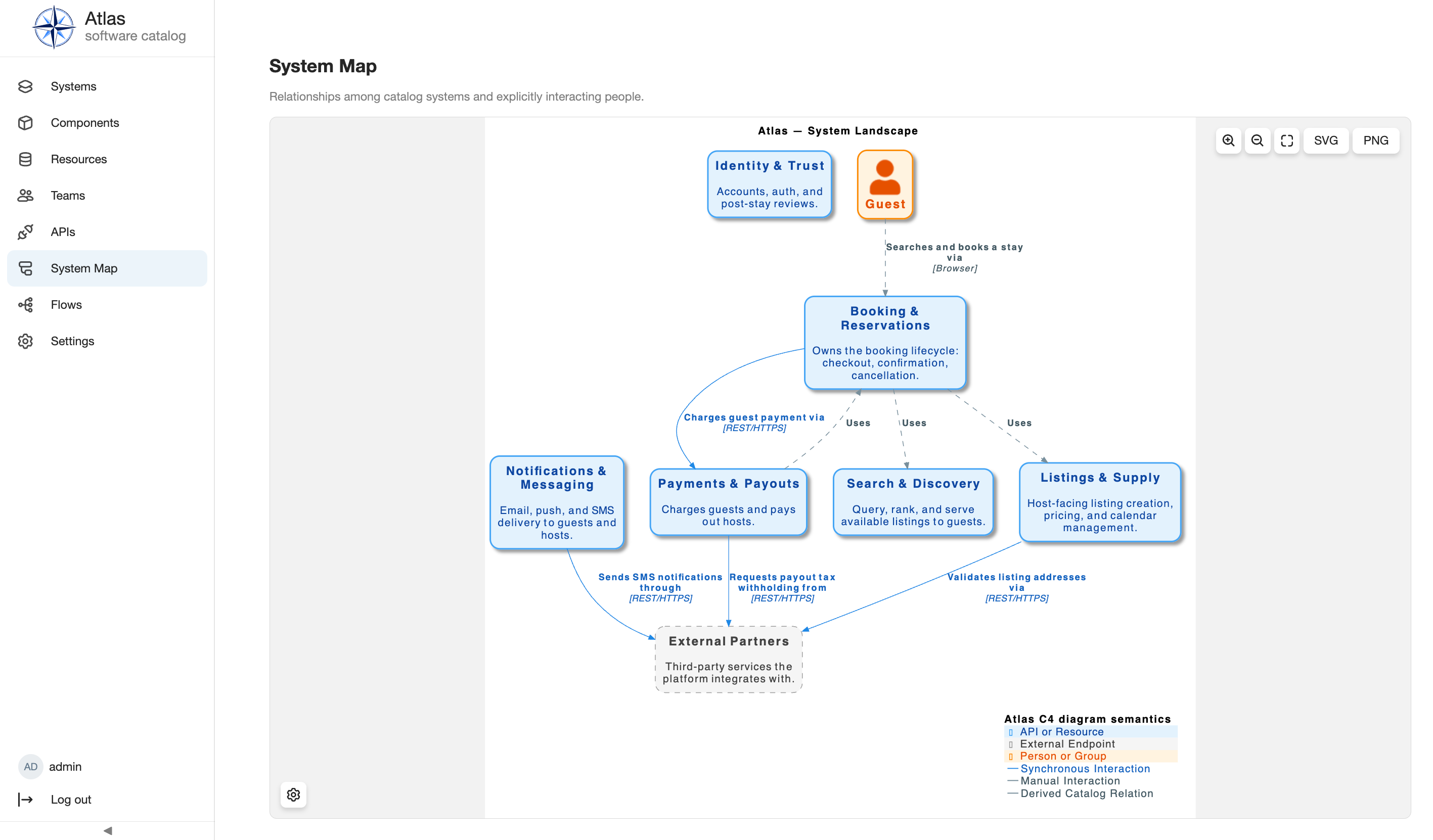
Booking & Reservations sits at the center of the same interactions seen in its System Context, now alongside every other System and the shared External Partners boundary. See C4 for layout controls and SVG/PNG export.
Verify the tour
After the tour, you should be able to:
- identify Booking & Reservations in both the Systems list and the catalog-wide System Map;
- open and close a list preview without losing the current list state;
- reach the System's owner and maintained documentation from Overview;
- explain why Catalog Relations and Architecture Relationships are separate;
- identify the Guest and three neighboring Systems in System Context;
- find an API's Specification and an Operation's linked-services graph;
- read a Flow's step-by-step diagram across Components and external participants; and
- read a Resource's ER Diagram back to its declared tables and keys.
Continue with Using Atlas for the task-oriented catalog workflows, or return to Getting Started to choose another reader journey.