Inspect entity details
Open an entity's full detail page to view its catalog metadata, ownership and containment, documentation, relationships, lifecycle history, and any views from selected plugins.
Outcome
Use the page to identify an entity's owner and parent System, tell derived catalog structure from declared architecture, recognize lifecycle and provenance warnings, and select a feature-specific view.
Prerequisites
- You are signed in to a running Atlas distribution.
- The entity exists and is visible in one of the catalog lists. Use Browse the catalog if you still need to find it.
- The available tabs come from plugins selected in the running distribution. The checked-in default distribution includes every view in this guide.
Permissions
Any authenticated principal can read catalog detail pages with the built-in policy evaluator. Edit, Remove, Revive, Purge, and relationship controls remain subject to backend authorization. Mutations also follow the rules in Permissions and Manage an entity's lifecycle.
1. Open the canonical detail page
Select a row in Systems, Components, Resources, Teams, or APIs, then select Open full details in the preview. The breadcrumb returns to the entity-kind list. The header shows the display title (or the machine name when no title is set), description, and tags.
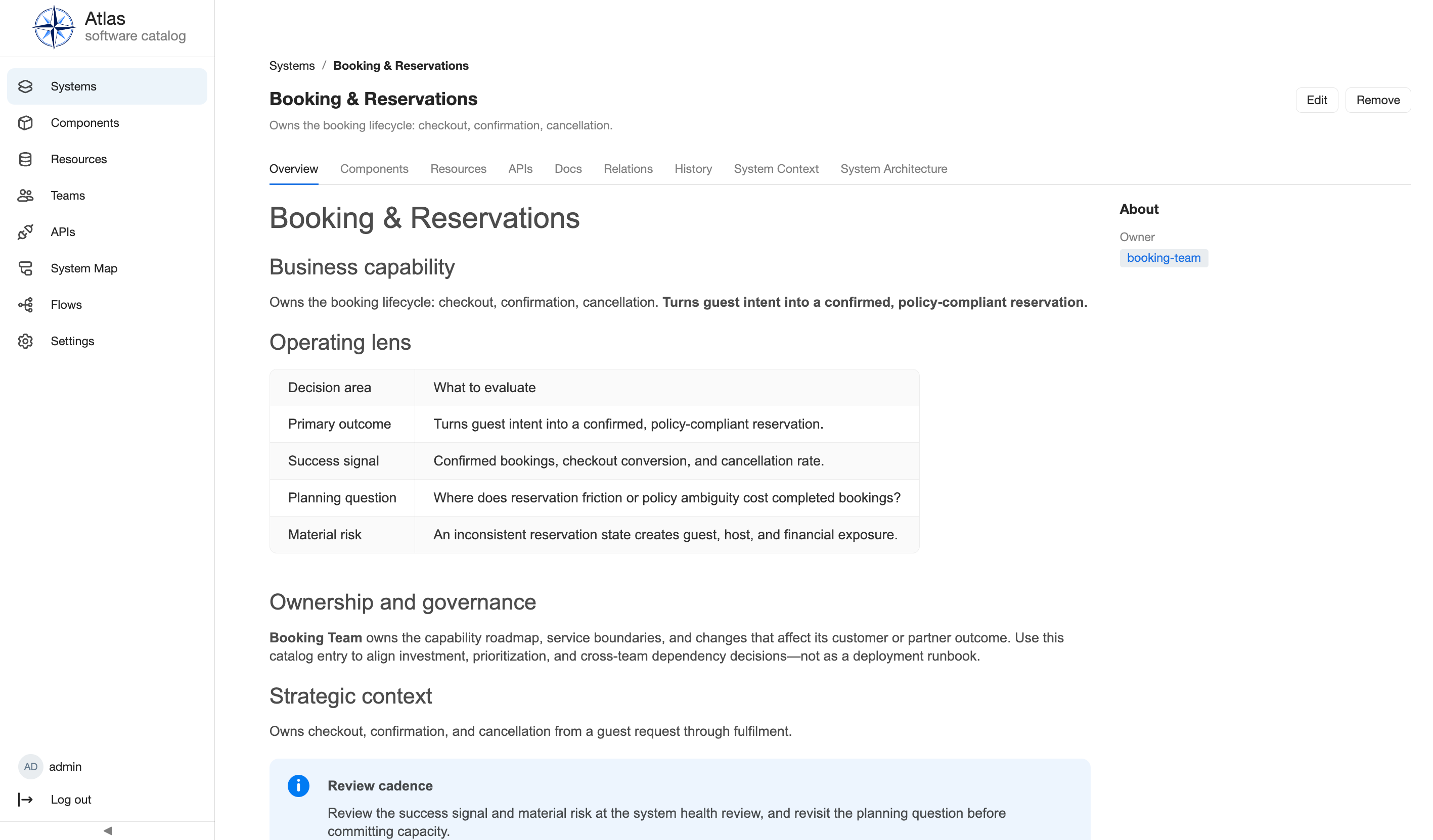
The full detail page URL links directly to the record. It does not include the list search, filters, pagination, or open preview.
2. Read identity, ownership, and containment
The About rail summarizes fields that help place the record:
| Kind | Summary fields | What the links mean |
|---|---|---|
| System | Owner | The Group responsible for the System. |
| Component | Type, lifecycle, owner, System | The responsible Group and required parent System. |
| Resource | Type, owner, optional System | The responsible Group and, when set, parent System. |
| API | Type, owner, System | The responsible Group and required parent System. |
| Team | Type, member count | The Group classification and number of Actor members. |
Owner and System values link to their own detail pages. These fields also
produce derived ownedBy/ownerOf and partOf/hasPart relations; see
Entity references for the canonical
relationship vocabulary.
If metadata contains external links, the rail adds a Links section. Links open in a new browser tab. A System also has a Docs tab that lists those same links; this is separate from Markdown documentation content.
3. Choose the right tab
Available tabs depend on the entity kind, its data and capabilities, and the selected plugins:
| Kind | Catalog tabs | Feature tabs in the default distribution |
|---|---|---|
| System | Overview, Components, Resources, APIs, Docs, Relations, History | System Context, System Architecture |
| Component | Overview, Relations, History | C4 Diagram |
| Resource | Overview, Relations, History | Schema, ER Diagram |
| API | Overview, optional Specification, Operations, Relations, History | Specification and Operations are supplied by atlas.apis |
| Team | Overview, Members, Systems, Components, Resources, APIs | None |
Overview renders the entity's Markdown documentation. A Component Overview also summarizes the APIs it provides or consumes and the Resources it depends on. A System's child tabs and a Team's ownership tabs provide tag filters and pagination; select a row to open that child's detail page.
An empty or missing tab can be expected. For example, an API's Specification tab appears only when resolved specification content exists. Plugin-specific tabs disappear when the plugin that provides them is not selected.
4. Distinguish the two relationship sections
Open Relations, which shows two separate models:
- Catalog Relations are derived from fields such as owner, System,
providesApis,consumesApis,dependsOn, and Team membership. They are read-only here; edit the field or its source of truth instead. - Architecture Relationships are declarations with a source, target, label, optional technology, interaction kind, tags, and origin. They describe an authored interaction rather than catalog containment.
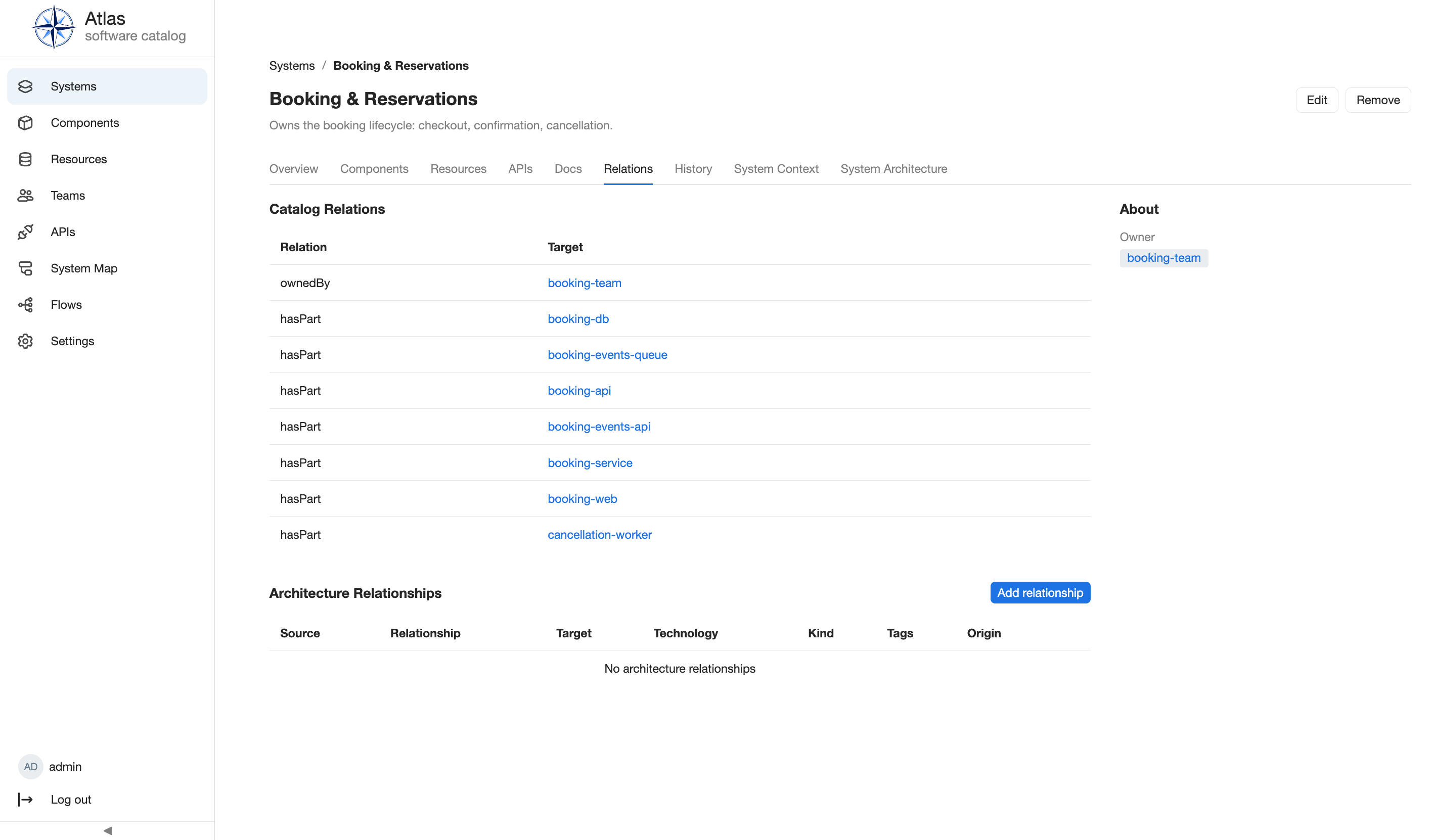
On a manual System, Component, Resource, or API, an authorized owner can use
Add relationship. Only a manual relationship whose source is the current
entity can be edited or deleted there. YAML-origin relationships are read-only
and must be changed in catalog-info.yaml, then reconciled by ingestion.
The warning icon beside a relationship endpoint means that the target is removed, deprecated, or both. Follow the target link and inspect its header to determine whether the relationship is usable.
5. Read state and provenance indicators
Before acting, check the header and banners:
| Indicator | Meaning | Correct next step |
|---|---|---|
| Removed badge | The entity is soft-removed and hidden from default lists. | Revive it or, with a Purge Grant, purge it. |
managed by catalog-info.yaml banner |
The repository named in the banner is authoritative. | Edit that repository and run ingestion. |
| This entity is unavailable | Its Entity Kind handler is not active. | Ask an operator to re-enable or reinstall the providing plugin. |
blocking a claim from ... warning |
An ingestion claim lost arbitration for this ref. | Follow Troubleshoot repository ingestion. |
| Relationship warning icon | The linked entity is removed or deprecated. | Inspect the target and correct the source relation if necessary. |
Open History on a System, Component, Resource, or API to review Created, Updated, Removed, and Revived audit events and their actor. Ingestion events show Ingestion as the actor. A purged entity no longer has a detail page, so its Purged event cannot be verified there.
Verify the result
With the booking demo loaded:
- Open Systems and then Booking & Reservations.
- Confirm that the owner link resolves to Booking Team.
- Confirm that Overview renders documentation and that the child tabs list Components, Resources, and APIs.
- Open Relations and identify both Catalog Relations and Architecture Relationships.
- Follow one relationship target, then use the breadcrumb to return to its kind's list.
Common problems
An expected tab is missing
The providing plugin may not be selected, the entity kind may not support the required capability, or the tab may need data such as resolved API specification content. Ask the operator to compare the active distribution with Assembling a distribution.
A relationship cannot be edited
Catalog Relations are always derived. Architecture Relationships are editable only when they are manual, originate at the current entity, and the entity is manual. Change a YAML declaration in its repository; do not recreate it as a second manual relationship.
The page shows a read-only or unavailable banner
For a YAML-managed entity, change the repository source. For an unavailable entity, restore the plugin. The state matrix in Choose the correct entity workflow shows the supported action for each combination.
Next steps
- Create or edit catalog entities.
- Manage an entity's lifecycle.
- Use feature-specific catalog views.
- Open the HTTP API reference for the generated read, relation, and history operations exposed by your running distribution.