Browse the catalog
Use the catalog lists when you know the kind of software record you need but do not know its exact entity reference. This guide takes you from the Atlas navigation to a filtered result, a quick preview, and the entity's full detail page.
Outcome
You will find one active entity, verify its summary without leaving the list, and open its canonical detail page. You will also know where Atlas exposes ownership-based views and which personal views are not currently available.
Prerequisites
- You are signed in to a running Atlas distribution. The checked-in default distribution and the Getting Started tutorial provide every navigation item used below.
- The distribution selects Standard Catalog for Systems, Components, Resources, and Teams. It selects the APIs plugin for APIs.
- For the reproducible examples, load the checked-in demo data as described in Getting Started.
Permissions
An authenticated session can browse these catalog lists and detail pages with the built-in policy evaluator. Ownership and edit permissions are not required for read-only browsing. The Add, Edit, and lifecycle actions visible near these views are separate workflows; see Permissions before changing an entity.
1. Choose the entity kind
Use the left navigation to open the list that matches the record you need:
| Navigation item | Use it to find | List-specific columns |
|---|---|---|
| Systems | Product or domain boundaries | Description, owner, tags |
| Components | Services, websites, libraries, and workers | Type, lifecycle, owner, system, tags |
| Resources | Databases, caches, buckets, queues, and clusters | Type, owner, optional system, tags |
| Teams | Groups, their members, and the entities they own | Type and member count |
| APIs | OpenAPI, gRPC, AsyncAPI, and GraphQL records | Type, owner, system, tags |
The active navigation item remains highlighted on both its list and detail routes. Selecting the Atlas logo returns to the catalog home page.
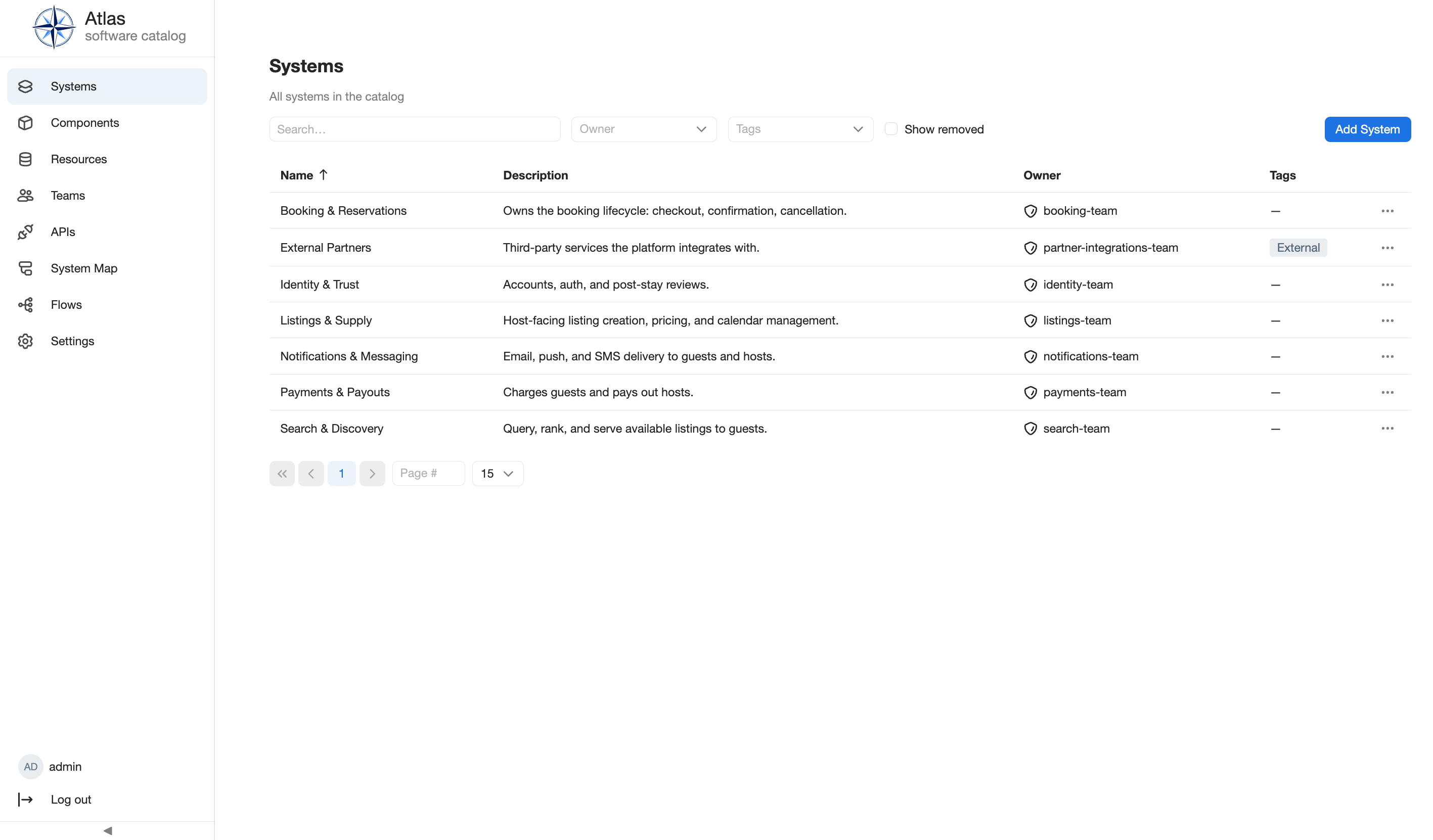
2. Search by catalog text
On Systems, Components, Resources, or APIs, enter text in
Search. Atlas performs a case-insensitive substring search across the
entity's machine name, description, and documentation content. For example,
search finds the demo System whose machine name is search-discovery and
whose displayed title is Search & Discovery.
Search does not have a submit step. Changing or clearing the field reloads the first result page. A displayed title is not a separate search field, so use the machine name or text from the description or documentation if a title-only query returns no result.
The Teams list currently has no search field. Sort it by Name or move through its pages, then use the preview to confirm the team.
3. Narrow the list with filters
Filters combine with the search text. Clearing a filter returns to the first page.
| List | Available filters |
|---|---|
| Systems | Owner, Tags, Show removed |
| Components | Owner, Tags, Type (service, website, library, worker), Lifecycle (experimental, production, deprecated), Show removed |
| Resources | Owner, Tags, Type (database, cache, bucket, queue, cluster), Show removed |
| APIs | Owner, Tags, Type (openapi, grpc, asyncapi, graphql), Show removed |
| Teams | No list filters in the current UI |
Select more than one tag when any of those tags is acceptable; tag matching is an overlap test, not an "all selected tags" requirement. Show removed adds removed records to the active records and reveals a Status column. It is not a removed-only view. The unchecked default lists active records only.
4. Sort and page through results
Select the Name column heading to switch between ascending and descending server-side name order. Lists start in ascending name order. Changing search, a filter, tag selection, status visibility, or sorting returns you to page 1.
The pager starts with 15 rows per page. Use its page controls or page-number input to move through the result set, and choose 15, 30, 50, or 100 rows per page. Search, filters, sorting, page, and the open preview are local to the current list screen; Atlas does not currently encode this state in the URL for sharing or bookmarking.
5. Inspect a preview
Select a row once. Atlas keeps the list visible and opens a panel on the right. The panel always shows the display title and description, plus these summary fields:
| Kind | Preview fields |
|---|---|
| System | Owner |
| Component | Type, lifecycle, owner, system |
| Resource | Type, owner, optional system |
| API | Type, owner, system |
| Team | Type, member count |
Owner and system values in the panel link to their catalog detail pages. Use Close preview in the panel header to restore the full-width list.
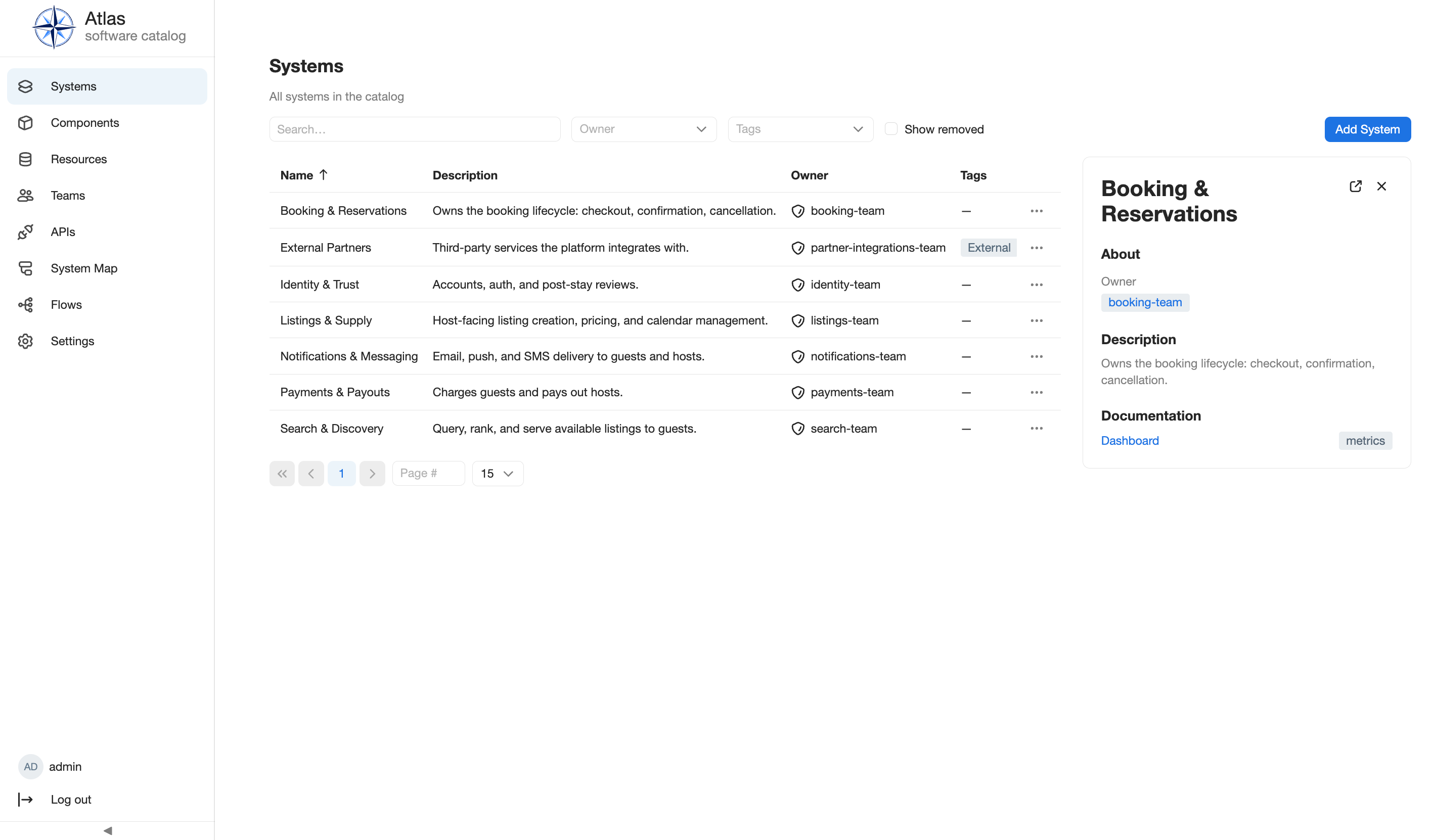
6. Open the full detail page
In the preview header, select Open full details. Atlas opens the canonical route for that entity and shows a breadcrumb back to its list. The first available tab is selected initially; additional tabs depend on the entity kind and the plugins selected in the distribution.
Use the preview for quick identification. Use the detail page for documentation, relationships, history, lifecycle status, feature-specific tabs, or available actions. The next catalog guide covers those details.
7. Browse by ownership
Atlas currently supports two ownership paths:
- On the Systems, Components, Resources, or APIs list, select an Owner to restrict that kind to one team.
- Open Teams, select a team, and open its full details. The Systems, Components, Resources, and APIs tabs list the records owned by that team. Each ownership tab can be filtered by tags and paged, and its rows open the corresponding entity details.
There is currently no personal Favorites, My entities, or bookmarked catalog view. Use the owner filter or Team detail tabs for the supported ownership-oriented workflow.
Verify the result
With the demo catalog loaded:
- Open Systems and search for
search. - Confirm that Search & Discovery appears.
- Select the row and confirm that the preview shows owner
search-team. - Select Open full details and confirm that the breadcrumb links back to Systems.
- Open Teams, open Search Team, and confirm that Search & Discovery appears on its Systems ownership tab.
Common problems
A navigation item is missing
Navigation items are contributed by selected plugins. Confirm that the running distribution includes Standard Catalog for Systems, Components, Resources, and Teams, and the APIs plugin for APIs. Operators can review distribution assembly; catalog users should contact the distribution operator.
A known entity is missing from the list
Clear Search and every filter, return to page 1, and check Show removed. If the visible title did not match, search by the machine name or a term from its description or documentation. A still-missing record may not have been created or ingested; continue with the relevant catalog-maintenance workflow.
The list says that no entities match
The active search and filters produced an empty intersection. Clear them one at a time. Multiple selected tags match any selected tag, but tag filtering still combines with the owner, type, lifecycle, status, and search constraints.
The preview disappeared after changing the result set
The preview only renders while its selected entity is on the current result page. Clear the new filter or return to the page containing the entity, then select its row again.
Next steps
- Read Entity model to understand what each kind represents.
- Read Entity references for owner, system, and relationship links.
- Read Life of an entity before using Show removed as part of a lifecycle task.
- Use feature-specific catalog views after opening an entity that leads to an API, C4 diagram, database schema, or Flow workflow.
- Continue to the Standard Catalog feature guide for the installed feature boundary.